Setting a scale
The scale editor: imperial or metric, the presets, separate horizontal and vertical.
The scale editor is one control used in two places, page settings and layer settings. What it offers is the same in both.
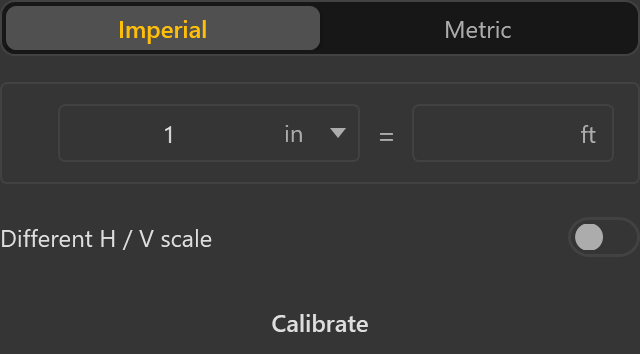
Imperial or metric
A toggle at the top switches the whole editor, and the equation row below changes with it.
- Imperial reads as an equation: so many drawing inches equal so many real feet.
- Metric reads as a ratio, one to something.
Presets
Pick the equation rather than typing it. Anything the presets do not cover can be typed straight into the equation row.
| Tab | Reads as | Values |
|---|---|---|
| Architectural | 1/4" = 1' | 3", 1-1/2", 1", 3/4", 1/2", 3/8", 1/4", 3/16", 1/8", 3/32", 1/16", 1/32" |
| Engineering | 1" = 40' | 10, 20, 25, 30, 40, 50, 60, 80, 100 feet |
| Metric | 1:100 | 1:50, 1:100, 1:200, 1:250, 1:500, 1:1000, 1:2000 |
The tab you were last on is remembered, so a civil estimator who lives in the Engineering tab does not land on Architectural every time.
Separate horizontal and vertical
Normally one scale covers both directions and the vertical follows the horizontal. Turning the option on reveals a second row set independently. It is for drawings genuinely stretched in one direction: a profile or section where the vertical is exaggerated to make grades readable.
Do not reach for it to correct a sheet that just prints slightly off; calibrate instead.
Notes
- Turning separate scales back off copies the horizontal over the vertical rather than restoring what the vertical used to be. Set a vertical, turn the option off, turn it on again, and the old value is gone.
- The editor carries a link that applies what you have set to every page, which is the normal case for a set drawn at one scale. Sheets that differ, details and enlarged plans especially, then need setting individually.